

Documentation Index
Fetch the complete documentation index at: https://lightdash-mintlify-7725ae17.mintlify.app/llms.txt
Use this file to discover all available pages before exploring further.
This feature is in Beta. We’d love your feedback as we continue to improve it.
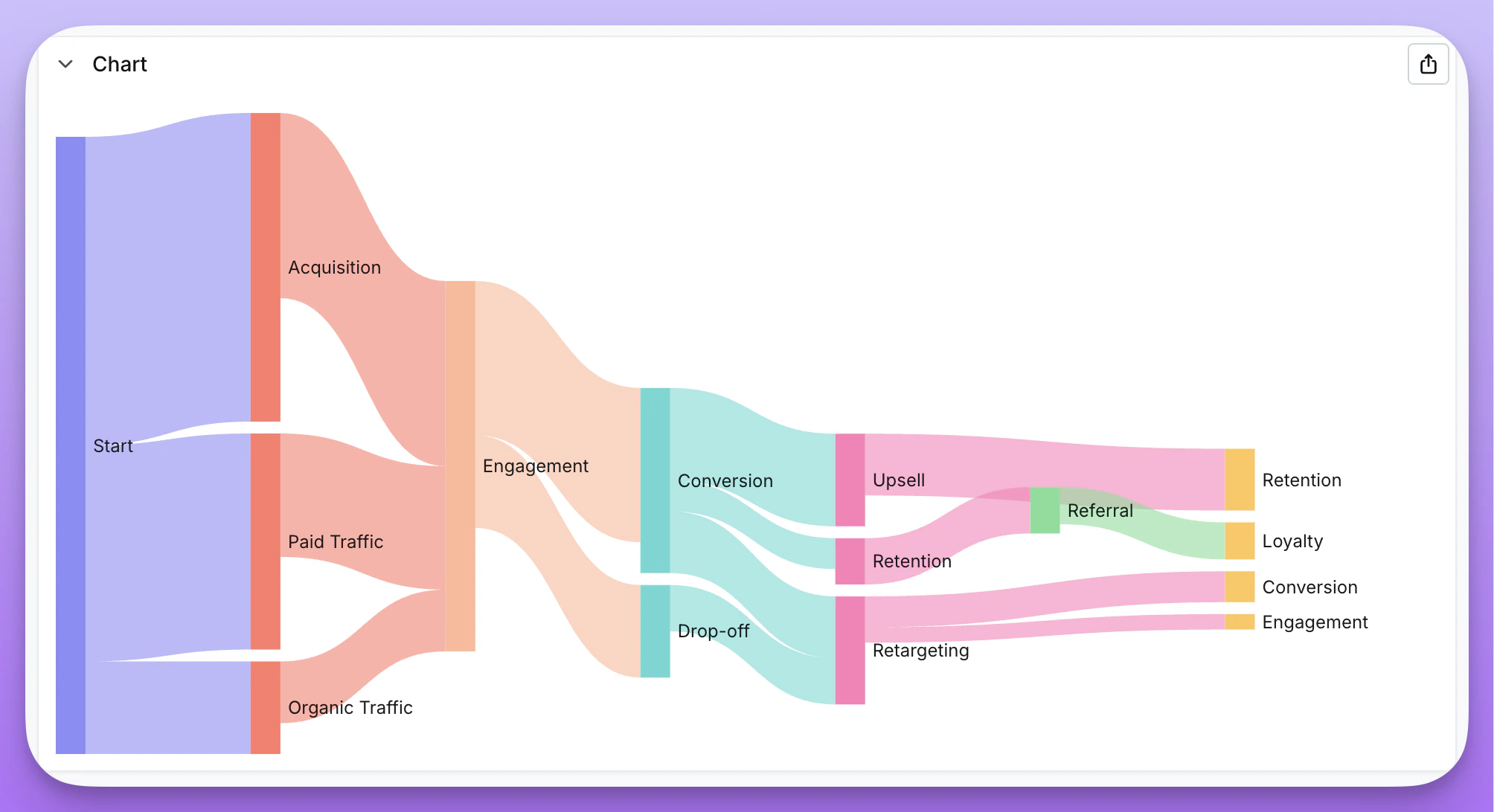
- You want to show how values flow between categories (e.g., marketing channels → conversions)
- You’re visualizing multi-step processes or funnels
- You need to understand distribution across interconnected stages
- You have cyclical flows that loop back (e.g., retargeting → conversion → retargeting)
Data requirements
Sankey charts require three columns in your data:| Column type | Description | Example |
|---|---|---|
| Source dimension | Where the flow originates | channel, referrer, stage_from |
| Target dimension | Where the flow goes | conversion_type, destination, stage_to |
| Weight metric | The size of the flow | count, revenue, users |
Creating a Sankey chart
- Run a query with your source dimension, target dimension, and weight metric
- Select Sankey from the chart type picker
- In the configuration panel, assign:
- Source — the dimension representing flow origins
- Target — the dimension representing flow destinations
- Value — the metric determining flow size
Features
Multi-step flows
Sankey charts automatically handle nodes that appear as both sources and targets, creating multi-level visualizations. For example, if “Email” appears as a target from “Ad Click” and as a source to “Purchase”, the chart will show the full flow path.Cyclical flows
Unlike traditional Sankey implementations, Lightdash supports cyclical data where flows can loop back. For example, in a retargeting funnel:- Awareness → Consideration
- Consideration → Conversion
- Conversion → Retargeting
- Retargeting → Conversion (loop)
Display options
- Orientation — Display flows horizontally (left to right) or vertically (top to bottom)
- Node alignment — Align nodes to the left, right, or justify across the chart